
Counter-Strike 2 is the most latency-sensitive competitive shooter on the market. Below is a full configuration built for maximum FPS, crystal-clear visibility and minimum input lag — the same principles used by professional players, adapted for stock hardware.
Video settings
| Setting | Value | Why |
|---|---|---|
| Resolution | Native (1920×1080) or 1440×1080 4:3 | 4:3 stretched = bigger player models. Native = clearer targets. |
| Display Mode | Fullscreen | Lowest input lag. |
| Refresh Rate | Match monitor (144/240/360) | Don’t leave this on “60”. |
| Boost Player Contrast | Enabled | Highlights enemy models. |
| V-Sync | Disabled | Adds input lag; use NVIDIA Reflex instead. |
| NVIDIA Reflex Low Latency | Enabled + Boost | Massive input-lag reduction. |
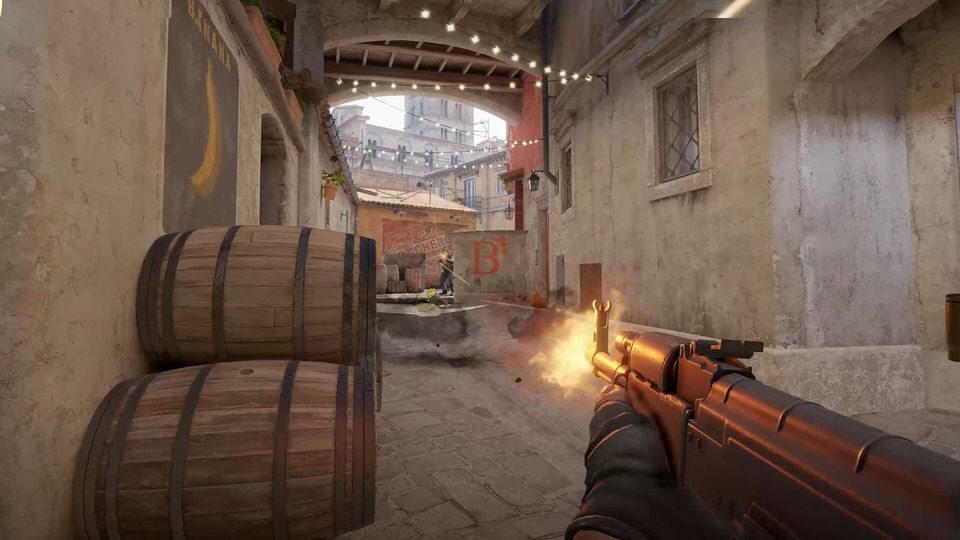
| MSAA | 4x or CMAA2 | Minimal performance cost for big clarity gain. |
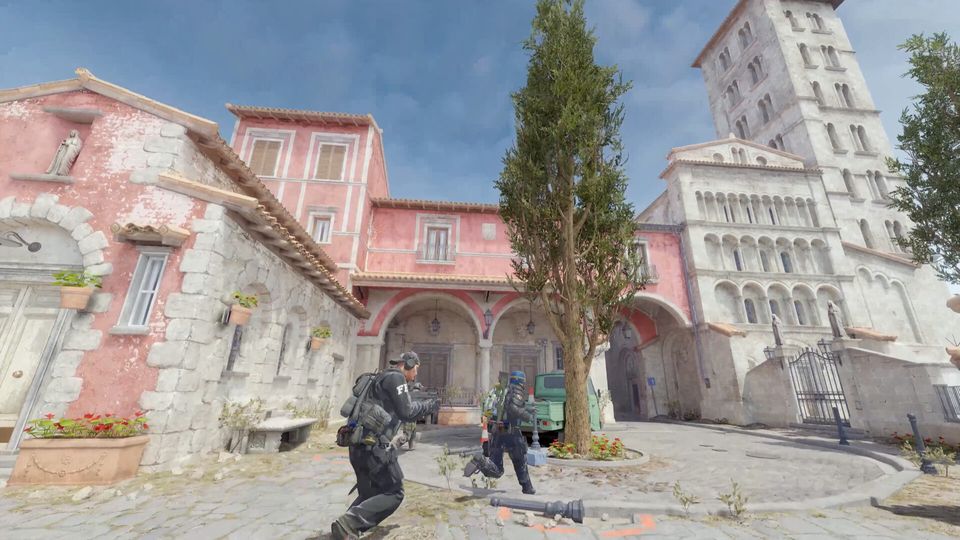
| Global Shadow Quality | High | Shadows reveal enemy positions — don’t lose this info. |
| Dynamic Shadows | All | Same reason. |
| Model / Texture Detail | Low | Minimal visual change, saves VRAM. |
| Texture Filtering | Anisotropic 8x | Sharp textures at distance, near-zero cost. |
| Shader Detail | Low | Biggest FPS jump for zero visibility loss. |
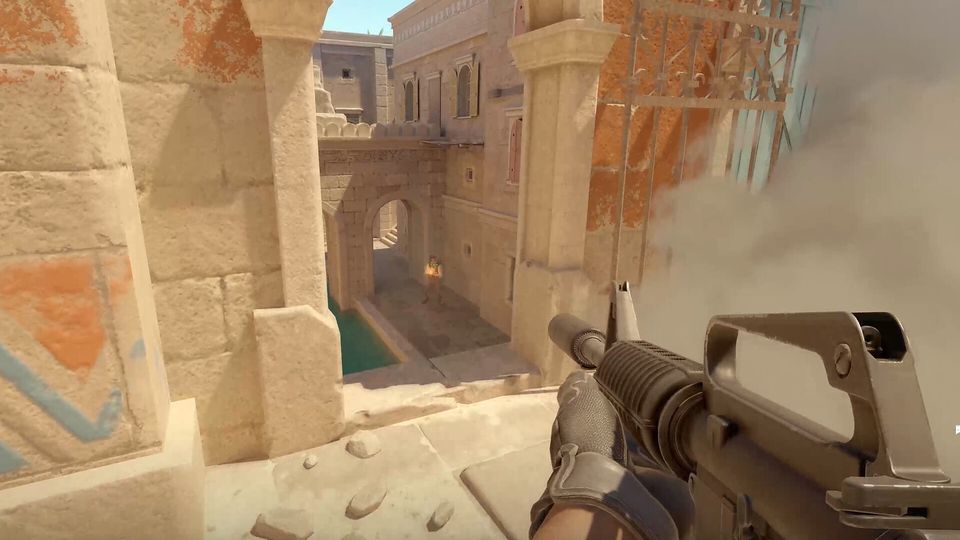
| Particle Detail | Low | Less smoke / debris. |
| Ambient Occlusion | Medium | Slight contact shadows, still readable. |
| High Dynamic Range | Performance | The “Quality” setting is noticeably heavier. |
| FidelityFX Super Resolution | Disabled | Adds blur to distant enemies. Only enable below 100 FPS. |
Launch options (Steam)
Right-click CS2 → Properties → General → Launch options. Paste:
-high -threads 8 -novid -nojoy -console +fps_max 0 -tickrate 128Explanation:
-high— sets process priority to High.-threads 8— replace 8 with your core count (max 12).-novid— skips the intro video.-nojoy— disables controller support (saves a tiny bit of RAM).-console— console on by default.+fps_max 0— unlimited FPS (cap via monitor / Reflex instead).-tickrate 128— forces 128 tick on local workshop servers.
NVIDIA Control Panel (Global 3D Settings)
- Image Sharpening: Off.
- Low Latency Mode: Ultra.
- Power Management Mode: Prefer Maximum Performance.
- Preferred Refresh Rate: Highest available.
- Texture Filtering – Quality: High Performance.
- Vertical Sync: Off.
AMD Radeon Software
- Anti-Lag: Enabled.
- Radeon Chill: Disabled (causes variable frame-times).
- Image Sharpening: 70%.
- Enhanced Sync: Disabled.
Mouse & sensitivity
There is no universally “best” sensitivity — there is, however, a universally too high one. The majority of pros use a cm/360 of 30–55 cm, which corresponds to:
- 400 DPI × ~0.7–1.4 in-game
- 800 DPI × ~0.35–0.7 in-game
Calculate yours: turn your mouse through 360° and measure the distance it traveled. If it’s less than 25 cm, your sens is almost certainly too high.
Crosshair & viewmodel
Copy-paste into console for a clean static crosshair used by many pros:
cl_crosshairstyle 4
cl_crosshairsize 2
cl_crosshairthickness 1
cl_crosshairgap -2
cl_crosshair_outlinethickness 1
cl_crosshaircolor 5
cl_crosshaircolor_r 0
cl_crosshaircolor_g 255
cl_crosshaircolor_b 255
viewmodel_fov 68
viewmodel_offset_x 2
viewmodel_offset_y 2
viewmodel_offset_z -2
Audio
CS2 has a surprisingly capable audio engine. Correct settings make footsteps directional and clean:
- Audio Output Configuration: Headphones
- Perspective Correction: On
- Advanced 3D Audio Processing: On
- Master Volume: 50%
- Voice Volume: ~80% (vital for teamplay)
Closing tips
- Disable Windows Focus Assist and Game Bar — both can introduce stutter.
- Close Chrome, Discord background windows, Steam overlay pop-ups before queuing Premier.
- Run CS2 off an SSD — map load times are 4–6× faster.